
Attendance data in TrackEd can come from multiple sources, so it is helpful to know how this is handled and where the data comes from.
Student Summary Import:
The student summary import updates the total absences for this year and last year for each student. This is the main frequent import to keep the totals up to date.

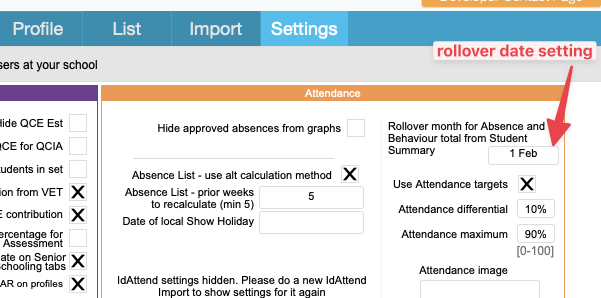
Importantly there is a setting option for a ‘rollover date’ with the default set to “Feb 1”. At the beginning of a new year, the data is imported form last year until that setting date, allowing you to generate profiles, classmats and datawalls for teachers using last years totals. If you change the date, a new student summary import is needed to refresh.
Absence List Import:
The Absence List import contains absences in half day increments, with a set of codes for length and penalty type. During each import the whole year of absences is deleted and replaced in TrackEd and is visible on the ‘absences’ alternative profile and is summaries by each code on the engagement list. By default the total absences is not updated for each student and the total continues to import from the student summary.


There is a setting option to enable the absence list import to update the total absences as well. This defaults to off, but can be enabled as pictured.

During the absence list import, TrackEd will also convert the daily absence codes into weekly percentage attendance data. This happens by default unless your school has used the old “ID Attend” import recently (more details below).
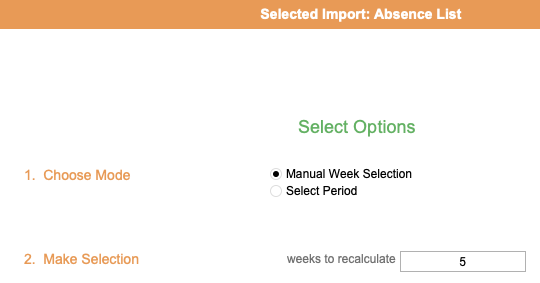
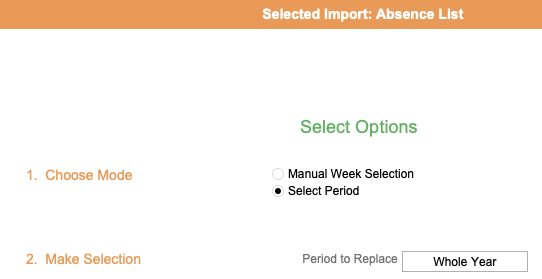
As you import the absence list, it will ask how many weeks of attendance data you want to replace. The default is 5 and that is good for most regular imports as a balance between speed and historic accuracy. About once per term, or before emailing out attendance data for students/parents, we recommend setting this option to ‘whole year’. The import will take longer to run, but will delete and replace all weekly percentage data for the year updating for any historical changes made in OneSchool.
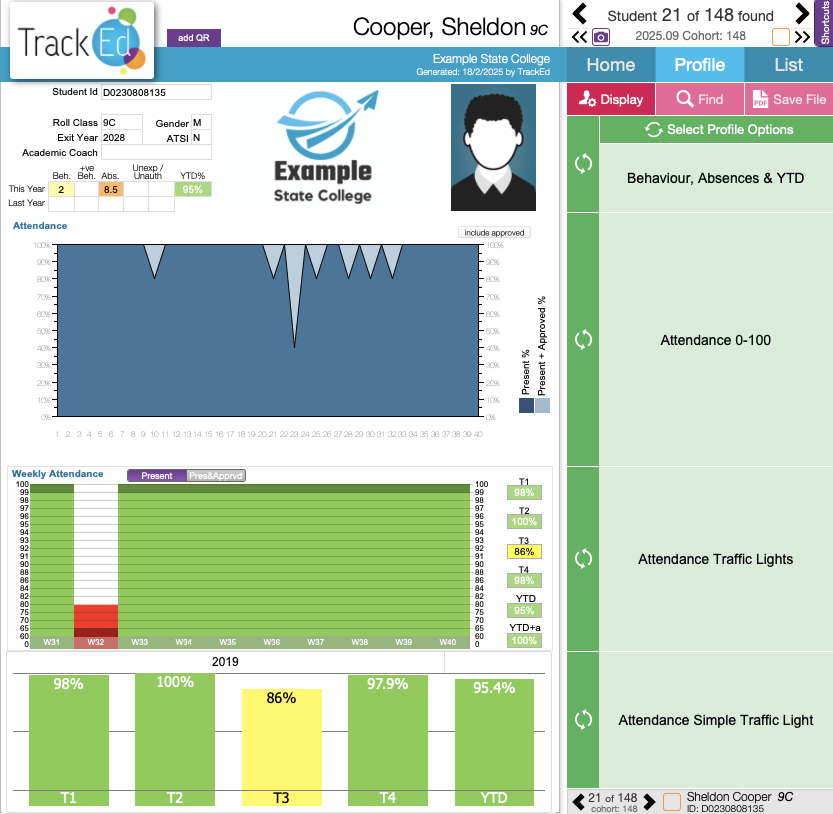
Also during this import it will re-calculate the term and year to date percentages and store that total for each student. Basically anything that is percentage based comes from the Absence List import.
ID Attend Import:
This is an old import type and not one that we recommend using. It is slower to source the data and easier to make mistakes during the import process. The one advantage is the data is more granular, being period based. If you use this import a setting is automatically ticked, labelled ‘ID Attend user’. With that option ticked, when you run the absence list import it will skip the weekly percentage part of the import so that the ID Attend data is retained.
If you want to change from ID attend to the absence list, you need to uncheck that option first. You then run the absence list import with the option to replace the ‘whole year’.
There are a few moving parts to this, so if you do have any questions please do get in touch.
