
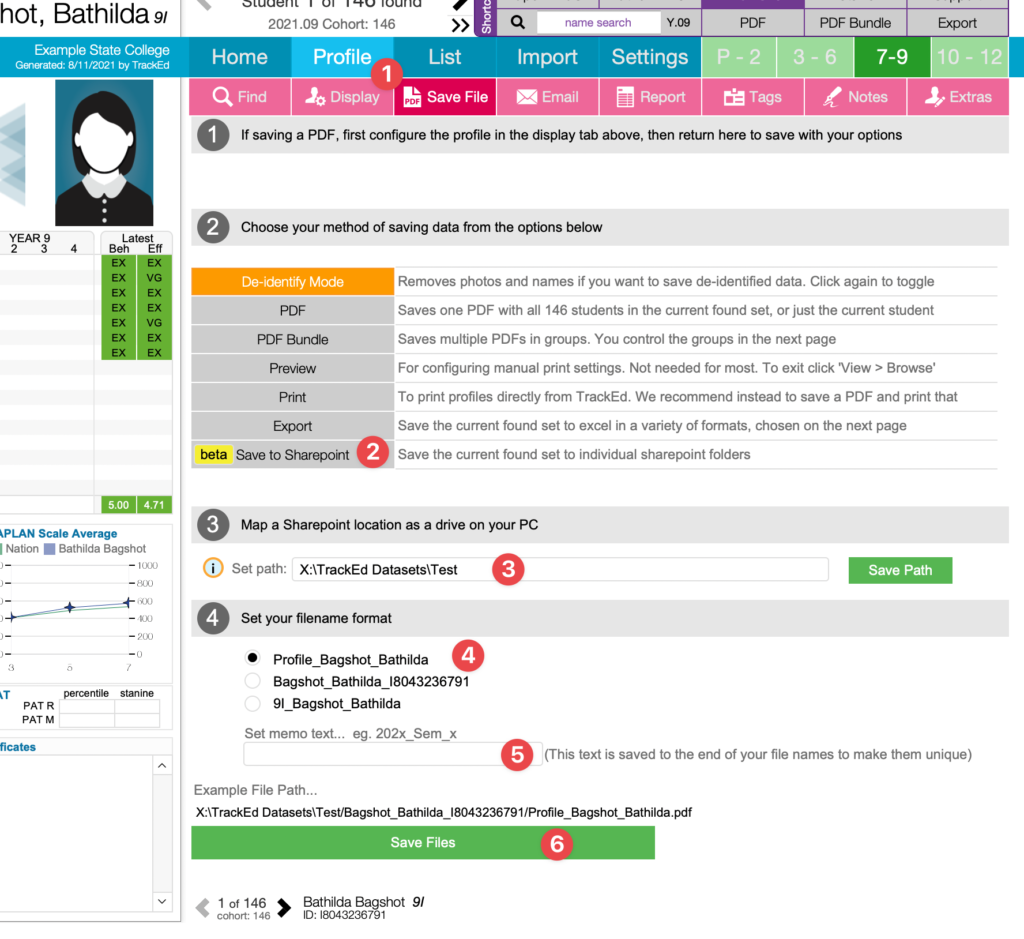
The “Save to Sharepoint” feature allows you to save a set of student profiles, each into its own folder. This feature is intended for sharing data among your staff.
First, you must map your Sharepoint drive to your PC, and enter the path in TrackEd. Instructions are here.
You can use the ’save files’ menu to save TrackEd profiles directly to the mapped drive. TrackEd creates one folder per student and saves the profile in that folder.
As an optional next step, you can open each student folder in Sharepoint, and copy the browser URL back to TrackEd using the list page called ’Sharepoint URLs’. As the link is pasted TrackEd to creates a QR code for each path
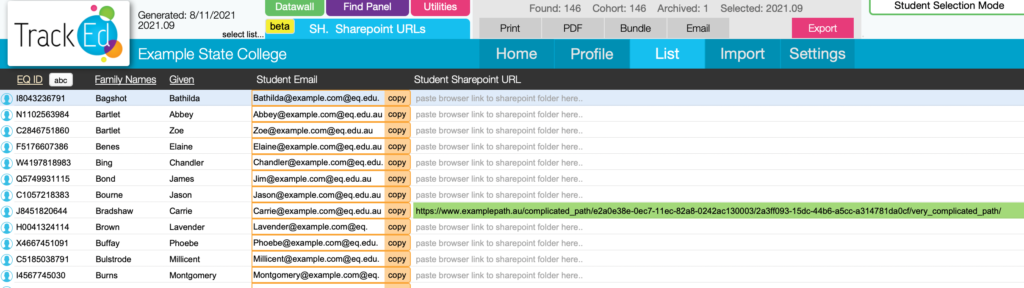
If you do copy the sharepoint folder URLs back to TrackEd, Datawalls can then be created with a unique QR code per student, allowing staff (with access to the sharepoint location) to be able to scan the code and open the folder for that student. It is a manual step to copy the URL paths back to TrackEd, but it is only done once per student as the student folders remain constant.
