The Staff SharePoint integration in TrackEd saves your bundled PDF reports into a tidy folder for each member of staff. Instead of one big PDF, TrackEd splits a report by class and drops each class’s file into the right teacher’s folder, so every teacher can find their own Datawalls, Profiles, ProgressTrackers, and ClassMats in one place.
TrackEd has two SharePoint integration types. Staff SharePoint, covered here, is the easier of the two to set up and the recommended starting point. The student SharePoint feature is a more niche option that saves student PDFs into a folder for each student. Both are meant for use by staff, not for sharing directly with students or parents.
In this article
Detailed Guide
Setting up the Staff SharePoint folder
Bundling a report to Staff SharePoint
Keeping file names tidy
Syncing the folder to SharePoint
Reference
Finding your bundled files
How the Staff SharePoint integration works
If you want each teacher to have their own set of class reports, Staff SharePoint does the sorting for you. Any report that has a PDF Bundle option, your Profiles, Lists, Datawalls, ProgressTrackers, and ClassMats, can be saved straight into a folder structure organised by staff member.
The folder structure follows how your school is organised. In a primary school you get a folder for the year, then a folder for each roll class, with all the saved data inside. In a high school TrackEd uses the timetable instead, so there is a folder per Staff ID holding all of that teacher’s class data, across every cohort they teach, in one spot.
Setting up the Staff SharePoint folder
Before you bundle anything, you point TrackEd at a folder on the Settings page. There are two ways to set this up. Option A uses Microsoft Teams and is a little easier; Option B creates the folder yourself first. You only need one.
Option A: using Microsoft Teams (the path is provided to you by your school’s Microsoft setup)
- Create a channel in the staff team, which creates a Document Library in the matching SharePoint.
- In SharePoint, click the Sync button. The library then shows as a folder in OneDrive.
- Hold down Shift, right click that new folder in OneDrive, and choose Copy as Path.
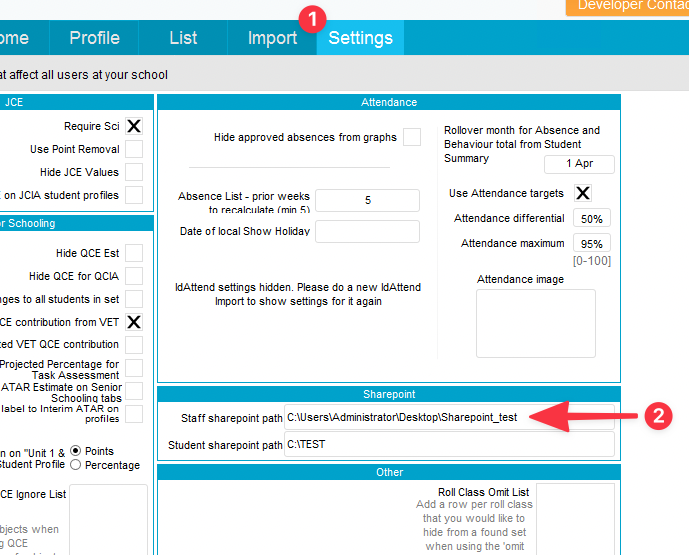
- Paste this path into the SharePoint setup location on the Settings page, as pictured.
- With the folder in place, use the PDF Bundling > Staff SharePoint options on the Profile, List, Datawall, ProgressTracker, and ClassMat pages. Your data syncs to the Teams SharePoint.
Option B: creating the folder first (set up the folder, then configure syncing as an optional last step)
- Create a folder on your PC to save Staff SharePoint data into.
- Hold down Shift, right click that new folder, and choose Copy as Path.
- Paste this path into the SharePoint setup location on the Settings page.
- With the folder in place, use the PDF Bundling > Staff SharePoint options on the Profile, List, Datawall, ProgressTracker, and ClassMat pages. Used this way it won’t sync to SharePoint on its own, but it does create a folder for each staff member and save the class PDFs into them.
- Optional: set the folder up to sync using this Microsoft support article to map a network drive to a SharePoint library.
Bundling a report to Staff SharePoint
Once the folder is set, saving a report is quick. Build the report you want, for example a Datawall for a whole year level, then use the Bundle option at the top of the page and choose Staff SharePoint.
The first time you run it, TrackEd fills in the path to your TrackEd_docs SharePoint folder for you. Click Continue and TrackEd saves the report into the staff folders, one neat document per class, splitting a year-level Datawall into a tidy two-page file for each class. The same Bundle option works on every report that offers it, so the steps are the same wherever you start.
Keeping file names tidy
By default, TrackEd adds a timestamp to the end of each file name. The next time you bundle the same report, the new file sits beside the old one, so you keep a history of every version you have saved.
If you would rather keep the folder small and don’t need that history, turn on the use generic file names option. It drops the timestamp, so a file is named something like datawall-classID.pdf, and the next bundle replaces what was there before.
Syncing the folder to SharePoint
Setting up the SharePoint Sync part is optional. The feature works with the folder alone, but once sync is configured, anything TrackEd saves into that folder starts copying up to your SharePoint location automatically. That is what lets staff open their folder from Teams or SharePoint rather than from one shared computer.
If you do use SharePoint Sync, it helps to pick one person at the school to do the saving. That keeps the files syncing from a single computer rather than from many across the network. You then grant staff access to their folders through Teams, or through the access levels set in the Microsoft instructions.
Reference
Where you can create a PDF Bundle
Every page below carries a PDF Bundle option with a Staff SharePoint choice. Use this as a quick reminder of where to find it and what each one saves.
| Page | What it bundles | Notes |
|---|---|---|
| Profile | A profile per student, grouped into staff folders | Bundle option at the top of the page |
| List | The current list view, split by class into staff folders | Same Bundle option as the other pages |
| Datawall | A two-page Datawall per class | Bundle a whole year level in one go |
| ProgressTracker | A ProgressTracker per class | Choose the subject codes you want and which user field to use |
| ClassMat | A ClassMat per class | Create the ClassMat as normal, then use the Bundle option |
Finding your bundled files
After you bundle, the files land in the staff folder structure inside your SharePoint folder. Open a teacher’s folder, by Staff ID in a high school or by roll class in a primary school, and you see all the reports saved for them in one place.
If you set up SharePoint Sync, those same files appear in the Teams or SharePoint location for any staff you have granted access to, so teachers can reach their own class data without going through TrackEd.
Frequently Asked Questions
Q: Do I have to set up SharePoint Sync to use this?
A: No. You can bundle reports into the local TrackEd_docs folder without any sync. SharePoint Sync is an optional extra that copies the folder up to your staff SharePoint automatically.
Q: How do I stop old bundles piling up in the folder?
A: Turn on the “use generic file names” option before you bundle. It drops the timestamp from the file name so each new bundle overwrites the previous one.
Q: Which reports can I bundle to Staff SharePoint?
A: The Profile, List, Datawall, ProgressTracker, and ClassMat pages all have a PDF Bundle option with a Staff SharePoint choice.
Q: Should everyone save files, or just one person?
A: If you have set up SharePoint Sync, pick one person to do the saving. That keeps the folder syncing from a single computer rather than from many across the network.
Q: What’s the difference between Staff and Student SharePoint?
A: Staff SharePoint saves class PDFs into a folder for each Staff ID. The student SharePoint feature saves student PDFs into a folder for each student. This article covers the staff feature.
Legacy Content